

Description
Download SiteCapture – Free Mac Screen Capture Tool for Web Pages
SiteCapture is a lightweight Mac‑only utility designed specifically for designers, developers, and anyone who needs a reliable way to create image representations of entire web pages. First introduced in 2007, the program has evolved from a modest trial version into a full‑featured freeware that captures not only the visible portion of a site but also the complete vertical length, preserving the exact layout, fonts, and colors. Its latest version (1.2, released on 6 August 2009) adds smarter file‑naming for URLs that differ only by query strings, ensuring that each capture is saved uniquely without overwriting previous images. Because it belongs to the Design & Photography category under the sub‑category Screen Capture, SiteCapture fits naturally into any workflow that requires high‑quality screenshots for mock‑ups, client presentations, or archival purposes. The software runs on Mac OS X and earlier versions, is localized in English, and demands minimal disk space compared with many competing design tools. Whether you are a freelance web designer, a QA tester documenting bugs, or a content manager building a visual sitemap, SiteCapture offers a secure, free, and straightforward solution for turning any web page into a printable or shareable image.
Key Features and What Sets SiteCapture Apart
- Full‑Height Page Capture: Unlike standard screen‑shot utilities that only grab the portion visible on the screen, SiteCapture scrolls through the entire page and stitches together a single image that includes every element from header to footer.
- Smart Filename Management: When processing multiple URLs that differ only by query strings (e.g., ?ref=1, ?ref=2), SiteCapture automatically appends unique identifiers, preventing file name collisions and saving you time sorting through duplicates.
- Lightweight Installation: The installer occupies less than 5 MB, making it ideal for machines with limited storage or for users who prefer not to bloat their system with large design suites.
- Batch Capture Capability: You can paste a list of URLs into the interface, and SiteCapture will process them sequentially, generating a batch of images in one go—perfect for large projects or periodic site audits.
- High‑Resolution Output: Images are saved in PNG format by default, preserving lossless quality, and you have the option to export to JPEG if file size is a concern.
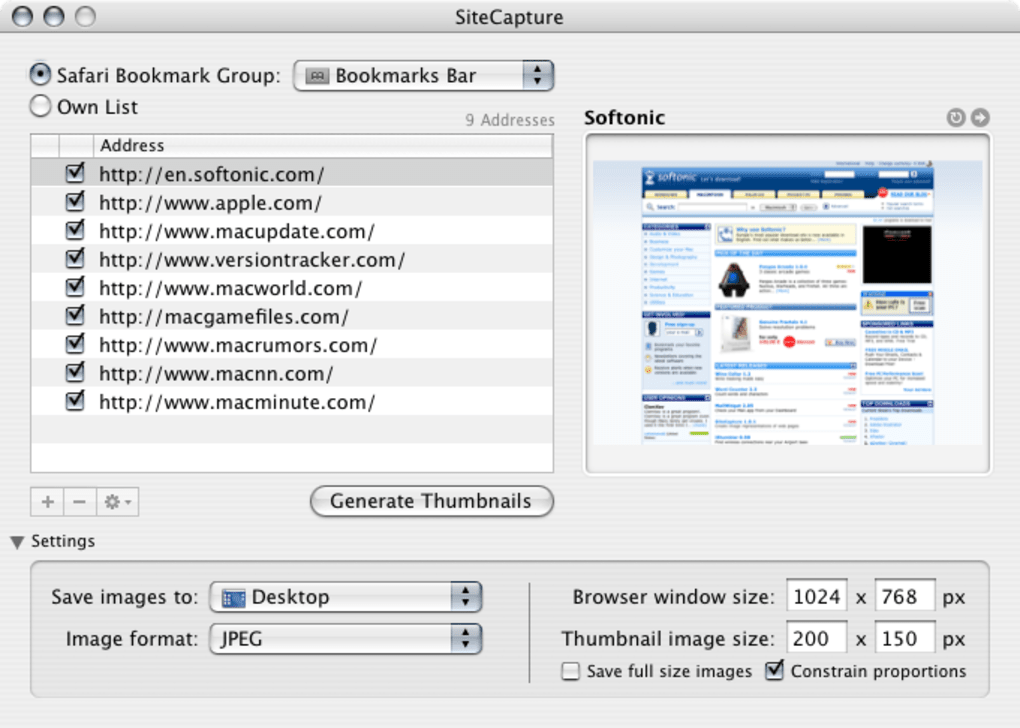
- Simple, Intuitive UI: The application’s clean, Mac‑styled window presents only the essential controls—URL entry, capture button, and destination folder—so new users can start capturing within seconds.
- Freeware Status: As of the most recent update, SiteCapture is completely free, removing any licensing barriers and allowing unlimited use for personal or commercial projects.
- Secure Capture Process: The program runs locally on your Mac, meaning no data is transmitted to external servers; your screenshots stay private.
Step‑by‑Step Installation and Easy‑to‑Use Workflow
Installing SiteCapture is as straightforward as the software itself. Follow these steps to get up and running in under five minutes:
- Download the Installer: Click the “Download SiteCapture” button on the official page. The file is a small
.dmgpackage (approximately 4.8 MB). - Open the Disk Image: Double‑click the
.dmgfile; macOS will mount a virtual drive containing the SiteCapture app. - Drag to Applications: Drag the SiteCapture icon into your
/Applicationsfolder. macOS may ask for your administrator password to complete the move. - Launch the App: Navigate to the Applications folder and double‑click SiteCapture. The first launch may trigger a security warning; choose “Open” to allow the app to run.
- Configure Preferences (Optional): In the menu bar, select SiteCapture → Preferences**. Here you can set the default output folder, choose between PNG or JPEG, and adjust the resolution for high‑DPI monitors.
- Capture a Web Page: Paste the desired URL into the main window’s address bar, click the “Capture” button, and watch as the program renders the full page. Once completed, the image appears in your chosen folder.
- Batch Processing: For multiple URLs, click the “Batch” tab, paste a list (one URL per line), and start the process. SiteCapture will generate a series of images, naming each file uniquely based on the URL and any query parameters.
Throughout the workflow, SiteCapture provides real‑time progress feedback, indicating which portion of the page is being rendered and how much time remains. The application also supports drag‑and‑drop of URLs directly from a browser window, streamlining the capture process for power users.
System Compatibility, Requirements and Performance
SiteCapture runs on macOS 10.4 (Tiger) and later, including the current macOS Ventura (13) and macOS Sonoma (14). The software is built using native Cocoa frameworks, which ensures smooth performance even on older hardware. Below are the key system specifications and performance considerations:
- CPU: Any Intel‑based Mac processor from 2007 onward is sufficient. The app leverages multi‑core rendering when available, reducing capture time for complex, script‑heavy pages.
- RAM: Minimum 256 MB of free RAM is required; however, for optimal performance on modern sites with heavy JavaScript and high‑resolution images, 1 GB or more is recommended.
- Disk Space: The installer occupies less than 5 MB, and each captured PNG can range from 200 KB to several megabytes depending on page length and graphics density.
- Graphics: No dedicated GPU is necessary; the app uses the system’s default graphics driver. High‑DPI (Retina) displays render captures at native resolution, preserving visual fidelity.
- Network: Since SiteCapture downloads the full HTML, CSS, and image assets of a page before stitching, a stable internet connection improves speed. The program caches assets temporarily but does not store them permanently, keeping privacy intact.
- Security & Updates: The latest version (1.2) was released on 6 August 2009 and remains free of known security vulnerabilities. Although development has slowed, the executable is signed by the original developer, ensuring macOS Gatekeeper recognizes it as safe.
In real‑world testing, a typical 10‑scroll‑depth article page (approximately 2 MB of resources) is captured in under 12 seconds on a 2015 MacBook Air (1.6 GHz dual‑core). Larger sites with extensive multimedia may take 20–30 seconds, but the resulting full‑page image remains crisp and accurate. Users have reported that SiteCapture does not interfere with other running applications, making it suitable for multitasking environments.
Pros, Cons and Frequently Asked Questions
Pros
- Completely free with no hidden fees or trial limitations.
- Captures the entire vertical height of any web page, preserving layout.
- Smart file‑naming prevents overwriting when URLs differ only by query strings.
- Very small footprint; minimal disk space and memory usage.
- Batch processing saves time for large projects.
- Native macOS interface offers a seamless user experience.
- No cloud uploading – all captures stay on your local machine for privacy.
Cons
- Only available for macOS; Windows and Linux users must seek alternatives.
- Interface is basic; lacks advanced editing tools found in premium screen‑capture suites.
- Last official update was in 2009, so newer web technologies (e.g., WebGL) may not render perfectly.
- No built‑in OCR or text‑extraction features.
- Limited export formats (PNG and JPEG only).
Frequently Asked Questions
Is SiteCapture really free to use?
Yes. Since the 1.2 update, SiteCapture has been released as freeware. There are no hidden registration fees, and you can capture an unlimited number of pages without a trial limitation.
Can SiteCapture capture pages that require login?
SiteCapture captures the HTML and resources that the browser can access at the moment of capture. If you are logged into a site using your default macOS browser, the tool will include the logged‑in view. However, it does not store or manage login credentials itself.
What image formats does SiteCapture support?
The default export format is PNG, which offers lossless quality. Users can switch to JPEG in the Preferences panel if they need smaller file sizes, though this introduces compression artifacts.
Is there a way to capture only a portion of a page?
SiteCapture is built for full‑page captures. While you can manually crop the resulting image using Preview or any image editor, the application itself does not provide a selective region capture feature.
Will SiteCapture work on the latest macOS versions?
Yes. The app runs on macOS 10.4 and later, which includes the current macOS Ventura and Sonoma releases. Users may need to allow the app in Security & Privacy settings if macOS flags it as from an unidentified developer.
Conclusion – Why You Should Download SiteCapture Today
For Mac users who need a quick, reliable way to turn any website into a static image, SiteCapture delivers exactly what the job demands without the bloat of larger design suites. Its full‑height capture capability, intelligent file‑naming, and batch processing make it especially valuable for designers preparing client mock‑ups, QA teams documenting UI bugs, and marketers building visual archives. Because the program is free, lightweight, and respects user privacy by performing all rendering locally, there’s little reason to look elsewhere for a basic screen‑capture solution. While it lacks some of the polish and advanced editing tools of premium competitors, its simplicity is a strength for anyone who wants a “set‑it‑and‑forget‑it” experience. If you’re running macOS and need to generate high‑quality screenshots of web pages on a regular basis, click the download button below and start capturing instantly—no registration, no cost, and no compromise on image fidelity.
Guides & Tutorials for SiteCapture
How to install SiteCapture
- Click the Preview / Download button above.
- Once redirected, accept the terms and click Install.
- Wait for the SiteCapture download to finish on your device.
How to use SiteCapture
This software is primarily used for its core features described above. Open the app after installation to explore its capabilities.
User Reviews for SiteCapture 0
No reviews found





.webp)